
Google Drive 'Video is Processing': How to Bypass the Wait (2025 Guide)
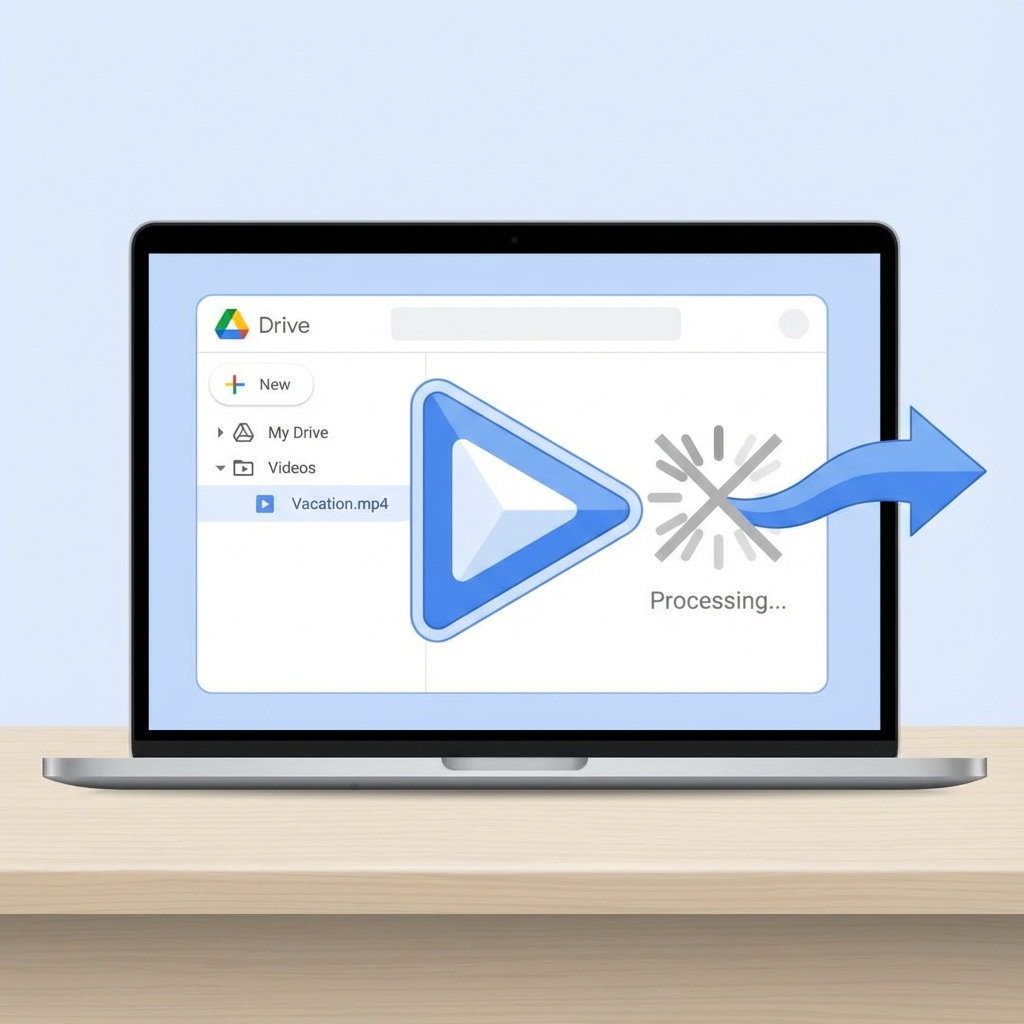
It's a scenario every video creator knows too well: You upload a 4K render to Google Drive to share with a client. You send the link. Two minutes later, you get the message:
"Check back later. We're processing this video."
Sometimes this message lasts for 10 minutes. Sometimes, for high-bitrate 4K files, it lasts for hours. In 2025, when we're dealing with massive 4K H.264 or HEVC files, this bottleneck is more than just annoying—it kills your workflow momentum.
Why Does Google Drive Do This?
Google Drive isn't primarily a video streaming platform like YouTube. It's file storage. When you try to play a video in the Drive web interface, Google attempts to transcode your high-quality original file into lower-resolution versions (360p, 720p, 1080p) that are easier to stream.
This process (transcoding) is computationally expensive. If their servers are busy, your video sits in a queue. Until at least one resolution is ready, no one can watch it via the native player.
The Secret: You Don't Need to Transcode
Here's the technical reality: Your browser (Chrome, Edge, Safari) is already capable of playing your original video file.
Most modern browsers support H.264, AAC, and increasingly H.265/HEVC decoding directly via hardware acceleration. The only reason you can't watch your video immediately is that the Google Drive web player is waiting for its own versions to be generated.
If you could feed the original file data directly to your browser's video engine, you could watch it instantly, with zero processing time.
How to Bypass the Processing Queue
You can bypass this wait completely by using a specialized third-party player that connects directly to the Google Drive API.
OnlinePlayer is designed exactly for this. Instead of asking Google for a transcoded stream, it requests the original file (alt=media).
Step-by-Step Guide
- Open OnlinePlayer: Go to onlineplayer.app.
- Connect Google Drive: Click the cloud icon and select Google Drive. You'll need to authorize read-access to your files.
- Note: We use a restricted scope (
drive.file), meaning we can only see files you explicitly select or open with our app. We can't scan your entire drive.
- Note: We use a restricted scope (
- Select Your Video: Browser your folders and pick that "processing" video.
- Instant Playback: The player will start streaming the original file immediately.
Why This Works better
| Feature | Native Drive Player | OnlinePlayer (Direct) |
|---|---|---|
| Start Time | Wait for processing (Min to Hours) | Instant |
| Quality | Compressed (YouTube-like artifacts) | Original Source Quality |
| Codec Support | Limited (often fails on MKV/HEVC) | Extended (MP4, WebM, native browser support) |
| Bandwidth | Adaptive (lowers quality on slow net) | High (requires good connection) |
The "Download Limit Exceeded" Fix
Another common Google Drive annoyance is the "View/Download Limit Exceeded" error on popular shared files.
Because OnlinePlayer accesses the file via the API using your personal token (or the file owner's direct permission), it can often stream files that are temporarily blocked from the public web interface due to high traffic.
A Note for MKV & HEVC Users
While bypassing the processing queue works like magic for standard MP4 (H.264) files, be aware of browser limitations:
- MP4 / H.264: Plays perfectly everywhere.
- HEVC (H.265): Plays on Chrome (107+), Edge, and Safari.
- MKV: May not play directly because browsers don't natively support the MKV container. For these files, cloud transcoding is actually useful, but if you have MP4s, the direct method is superior.
Conclusion
Stop apologizing to clients for "processing" errors. By decoupling the storage (Google Drive) from the player (OnlinePlayer), you get the best of both worlds: secure cloud storage with instant, high-quality playback.