
Turn Your 1TB OneDrive into a Personal Cloud Home Theater
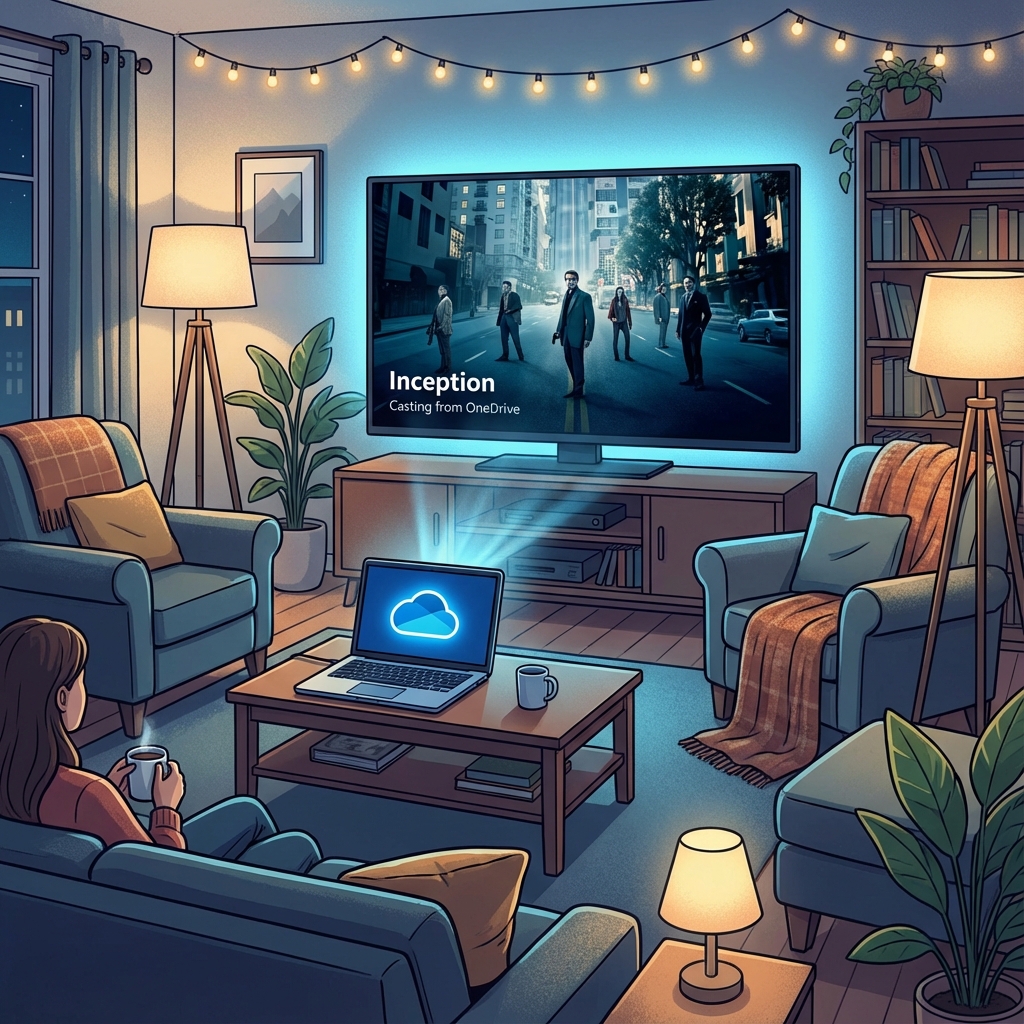
If you have a Microsoft 365 (formerly Office 365) subscription, you have something incredible sitting right under your nose: 1 Terabyte of high-speed cloud storage.
Most people use 5GB for Word documents and Excel sheets, leaving 995GB completely empty.
Why not turn that wasted space into your own private Cloud Home Theater? With OnlinePlayer, you can stream your movie and TV show collection directly from OneDrive to any device, effectively building a "Personal Netflix" for free.
Why OneDrive is Surprisingly Good for Media
Unlike other cloud providers that throttle speeds, OneDrive (powered by Azure's infrastructure) offers enterprise-grade bandwidth. It allows for:
- High Speed: Easily sustains high-bitrate 4K streams.
- Universal Access: Your files are available on Windows, Mac, iOS, Android, and Web.
- Huge Capacity: 1TB holds roughly 500 HD movies or 100+ 4K films.
The Missing Piece: A Good Player
OneDrive's built-in web player is... functional. It works for a quick check, but it's not designed for a movie night. It lacks subtitle support, playlist management, and advanced audio controls.
This is where OnlinePlayer fits in. We act as the "Screen" for your OneDrive "Hard Drive."
Key Features for Movie Lovers
- Playlist Management: Binge-watching a series? OnlinePlayer allows you to queue multiple episodes quickly.
- Cinema Mode: A distraction-free, blacked-out interface that disappears when you're watching, maximizing immersion on your laptop or TV screen.
How to Build Your Library
Step 1: Organize in OneDrive
Create a folder named Media or Movies in your OneDrive.
Organize content logically:
/Movies
  /Action
    /Mad Max (2015).mp4
  /Drama
/TV Shows
  /Breaking Bad
    /Season 1
      /S01E01.mp4
Step 2: Connect via OnlinePlayer
- Open onlineplayer.app.
- Select OneDrive and sign in with your Microsoft account.
- Browse to your
Moviesfolder.
Step 3: Stream to TV
You don't need to watch on a laptop.
- AirPlay: If you're on a Mac/iPhone, AirPlay the browser tab to your Apple TV.
- Chromecast: Use Chrome's "Cast" feature to send the tab to your TV.
- HDMI: The old-fashioned reliable way—connect your laptop to the TV and use OnlinePlayer's "Fullscreen" mode.
Privacy Note
Your "Personal Netflix" is exactly that—Personal. OnlinePlayer connects directly to Microsoft's APIs from your browser. We don't index your files, scan your library, or know what you're watching. Your movie taste remains between you and Microsoft.
Conclusion
Don't let that 1TB of storage sit gathering digital dust. With a little organization and the right player, you have a powerful, globally accessible media server already paid for.
Pop the corn, dim the lights, and hit play.