
The Universal Gateway: Using OpenList to Stream WebDAV & NAS on the Web
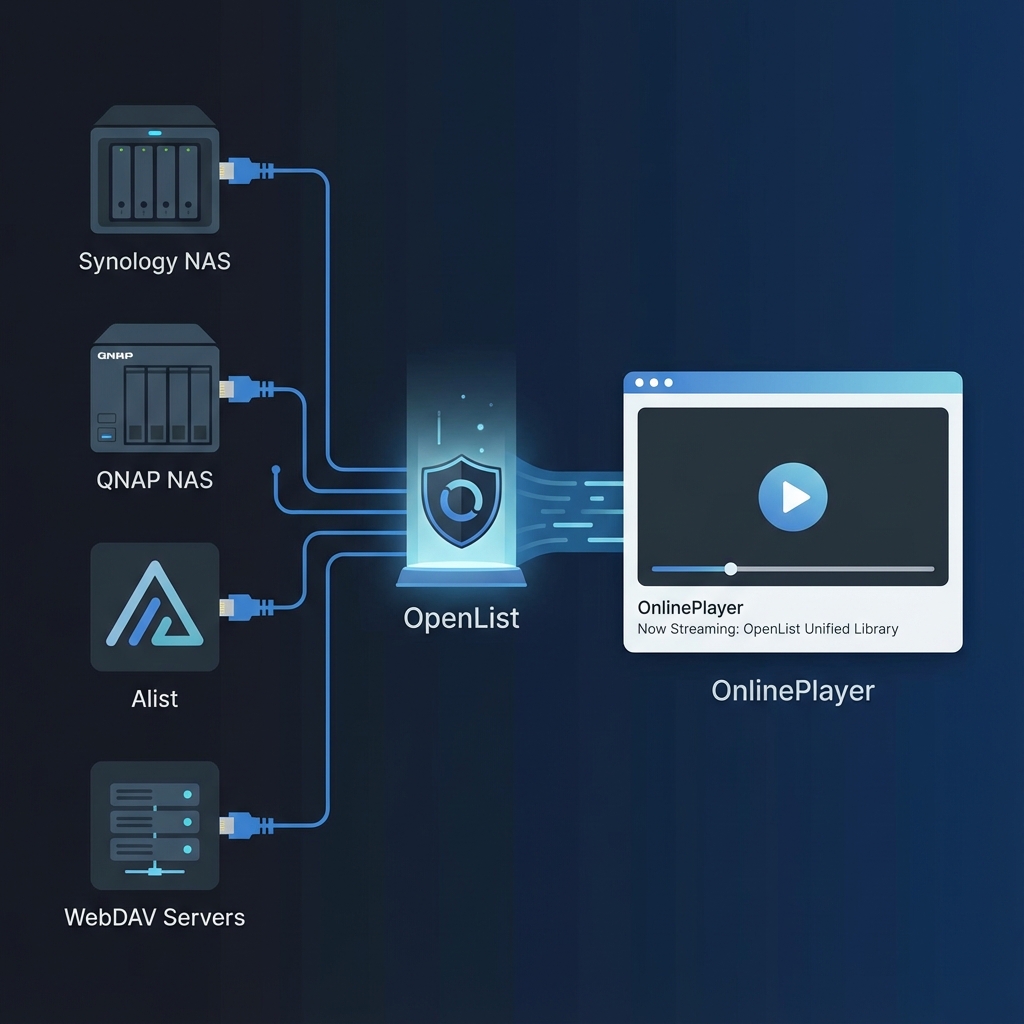
If you have a NAS (Synology, QNAP, Unraid) or a cloud file manager like Alist, you've probably tried this:
- Enable WebDAV on your NAS.
- Try to play a video file directly in a web browser or a web-based player.
- Fail. (Usually due to a "Network Error" or infinite loading).
Why is this so hard? The answer lies in a web security feature called CORS (Cross-Origin Resource Sharing).
The Problem: "CORS Hell"
Web browsers are strict. They generally don't allow a website (like onlineplayer.app) to fetch files from another server (your NAS at home.my-nas.com) unless that server explicitly says it's okay via specific HTTP headers.
Most NAS WebDAV implementations do not send these headers by default, and configuring them often requires SSH access and hacking Nginx config files.
The Solution: OpenList as a Gateway
This is where OpenList shines. It's not just a file lister; it's a Universal Gateway.
Instead of trying to force your browser to talk to 10 different picky services (WebDAV, SMB, FTP), you simply mount them all into OpenList.
graph LR
    Browser[OnlinePlayer (Browser)] -->|HTTP/HTTPS| OL[OpenList Gateway]
    OL -->|WebDAV| Synology[Synology NAS]
    OL -->|WebDAV| QNAP[QNAP NAS]
    OL -->|API| Alist[Alist / Cloud drives]
Why This Architecture Works
- CORS Solved: OpenList is designed for the modern web. It sends the correct CORS headers, allowing OnlinePlayer to connect instantly using your token.
- Protocol Translation: Your browser doesn't need to speak WebDAV. OpenList handles the WebDAV conversation locally and serves the file to your browser as a standard HTTP stream.
- Unified Library: You can mount a Synology folder, a QNAP folder, and an Alist drive all into one OpenList directory tree. OnlinePlayer sees them as a single, unified library.
How to Set It Up
Step 1: Mount WebDAV in OpenList
- Log in to your OpenList admin panel.
- Go to Storage -> Add.
- Select WebDAV as the driver.
- Enter your NAS details:
- Mount Path:
/nas-movies - Address:
http://192.168.1.10:5005(or your DDNS address) - Username/Password: Your NAS credentials.
- Mount Path:
Step 2: Connect OnlinePlayer
- Open onlineplayer.app.
- Click the OpenList icon.
- Enter your OpenList address, username, and password.
That's it. You can now browse your /nas-movies folder and play 4K videos smoothly. No browser console errors, no "Network Failed" messages.
A Note on Performance
Because OpenList acts as a middleman, does it slow things down?
No. OpenList streams the data (proxies the bytes) in real-time. It doesn't download the whole file before sending it to you. As long as the network between OpenList and your NAS is fast (which it usually is, often on the same LAN or Docker network), the added latency is negligible (< 1ms).
Conclusion
Don't fight with legacy protocols in a modern browser. Use OpenList as your "translator." It turns your rigid, secure NAS storage into a flexible, web-friendly media API that OnlinePlayer can consume effortlessly.